
Not sure where your Azure budget is going? This guide explains how manufacturers can pinpoint top cost drivers, right-size resources, and stop paying for what they don’t use.
Understanding the Azure Pricing Calculator: A Manufacturing Perspective
In the fast-paced and cost-sensitive business world, every decision has a direct impact on the bottom line. That's where the benefits of cloud services come in. With a focus on OpEx rather than CapEx compared to on-premise software, cloud services allow flexibility in terms of spend. But - that also means you could accidentally book on services you don't need. That's where the Azure Pricing Calculator (APC) becomes a vital tool. Designed to provide an accurate estimate of costs across various Azure services, APC supports IT Directors and managers to make informed financial decisions.
The Azure Pricing Calculator allows you to input specific parameters related to your cloud usage, such as the number of virtual machines, storage requirements, and data transfer volumes. By simulating different scenarios, you can predict costs more accurately and avoid unexpected charges. This transparency and predictability are essential for maintaining financial stability and ensuring that cloud investments deliver maximum ROI.
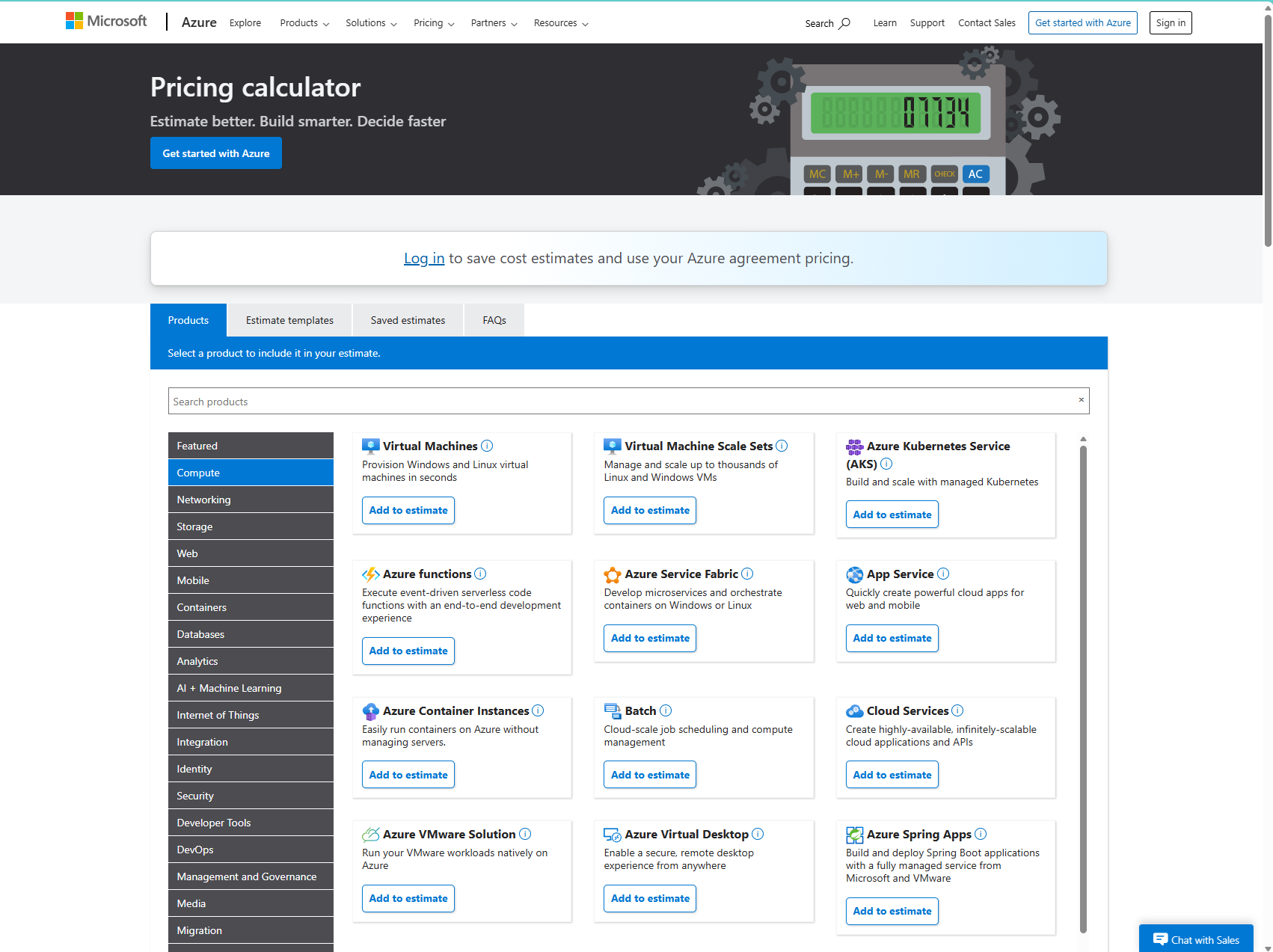
How Does Azure's Pricing Calculator Work?
The key feature of APC is its granular customisation options. This allows you to tailor your cost estimates based on specific requirements such as processing power, storage needs, and geographic locations.
Secondly, it gives you the full view of Azure's range of services. You can evaluate costs for services such as Azure IoT, machine learning, and advanced analytics. Another key feature is the calculator's ability to provide cost estimates in multiple currencies, making it easier for you if you operate in several markets worldwide.
Step-by-Step Guide to Using the Azure Pricing Calculator for Cost Efficiency
Using the Azure Pricing Calculator is straightforward, but we'll provide you with a step-by-step guide for maximum cost efficiency:
Define your requirements: Start by identifying the specific Azure services you need. This could include virtual machines, databases, storage, and networking components.
Input parameters: Enter detailed information about your usage patterns, such as the number of instances, storage capacity, and expected data transfer volumes.
Simulate different scenarios: Use the calculator to model various usage scenarios. This helps in understanding how changes in usage patterns can impact costs.
Review cost estimates: Carefully review the cost estimates provided by the calculator. Pay attention to any additional charges that may apply, such as data transfer fees.
Optimise configurations: Adjust your configurations to identify cost-saving opportunities. For example, consider using reserved instances (if you're able to commit that is) or spot instances (greater discount but risk of interruption) to reduce costs.
Monitor and adjust: Regularly monitor your actual usage and compare it with the estimates. Adjust your configurations as needed to stay within budget.
Best Practices for Cost Management
Beyond planning using the APC, develop a strategy following the below points:
- Implement cost governance policies: Establish policies and procedures for managing cloud costs. This includes setting budgets, monitoring expenses, and enforcing cost controls.
- Leverage Azure cost management and billing tools: Use Azure’s Cost Dashboard (see below) to track and analyse your spending for detailed insights and to identify areas for optimisation.
- Optimise resource utilisation: Regularly review your resource usage and remove underused or unused resources to reduce unnecessary expenses.
- Adopt a cloud-native approach: Design your applications to take full advantage of cloud-native features such as auto-scaling and serverless computing for significant cost savings.
- Engage with cloud experts: Work with cloud experts (such as us) to develop a tailored strategy for managing your Azure costs effectively.
The Azure Cost Dashboard
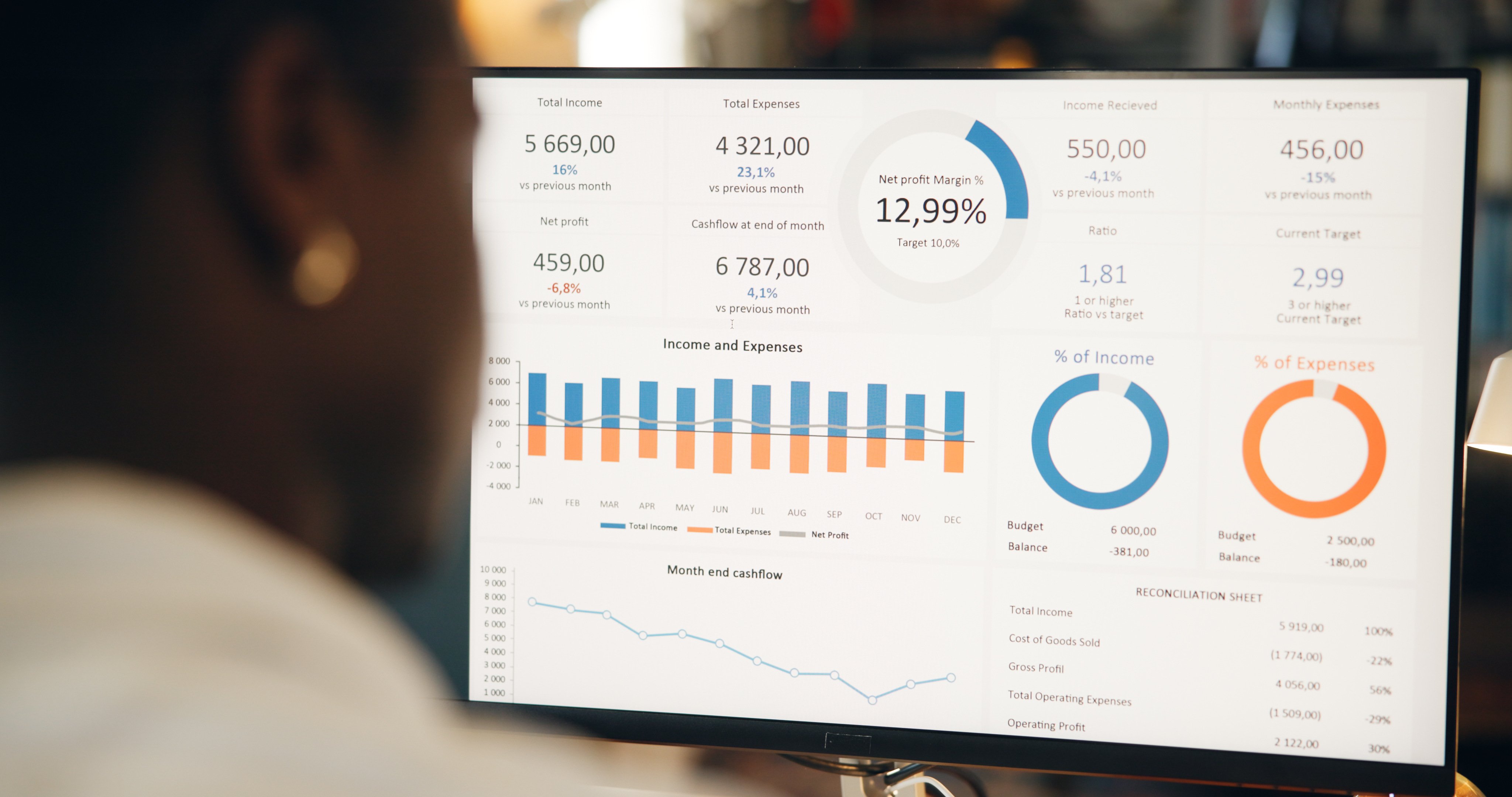
(Representative image, not an image of the Azure Cost Dashboard)
If you're already using Azure, the Azure Cost Dashboard in "Cost Management + Billing" gives you all the insight in forms of charts and tables into what you're spending money on and where there's opportunity to save. Think of it as your cloud spend homepage: totals, trends, and the biggest cost drivers, all filterable by subscription, resource group, tag, service, or region.
What Azure Cost Dashboard shows you
-
Spend over time with a forecast for the month.
-
Top spenders by service or resource group.
-
Breakdowns by tags like
env=prodorteam=marketing. -
Budgets and alerts so you get warned before you overspend.
-
Recommendations to save, such as right-sizing virtual machines or buying Reservations/Savings Plans.
How do I use Azure Cost Dashboard?
-
In the Azure portal, open Cost Management + Billing → Cost analysis.
-
Set the scope to the subscription or resource group you care about.
-
Switch Granularity to Daily and look for sudden jumps.
-
Sort by Service and Resource group to find “top talkers”.
-
Add a filter for
tag.env = prodto separate prod from everything else. -
Set a Budget with email or Teams alerts at 50%, 80%, 100%.
How does Azure Cost Dashboard help me make cost-saving decisions?
It shows you:
-
Which services are worth optimising first.
-
Whether to buy Reservations or Savings Plans for steady workloads.
-
Which idle or over-sized resources to shut down or shrink.
-
How to recharge costs to teams using tags or cost allocation.
What do I need to be mindful of when I use it?
-
Data is not live. Expect 8–24 hours delay. Do not chase same-day spikes as if they were final.
-
Budgets do not stop spend by default. They alert only, unless you wire up automation.
-
Forecasts are basic. Spiky or one-off jobs make them unreliable.
-
Bad tagging equals bad insight. Untagged resources will hide costs from your team view.
-
Currency, tax, dev/test benefits, and credits can make totals look odd if you compare with invoices. Check the billing account and currency settings.
-
Shared services, like networking, can inflate one team’s numbers unless you use cost allocation.
If you want to analyse further
- Export cost data to a Storage account and point Power BI at it for richer reports.
-
Standardise tags:
env,app,owner,costCentre. Enforce with policy. -
Track unit costs (e.g. £ per active user, £ per order) instead of only totals. That exposes real efficiency.
Conclusion
Using the Azure Pricing Calculator and the Azure Cost Dashboard empowers you to accurately forecast and manage cloud expenditure. Tailoring your inputs based on specific usage patterns reduces the risk of unforeseen costs and helps you stay on top of budget control. By following our practical, step-by-step approach to scenario modelling and cost governance, continuous optimisation, and leveraging native Azure tools, you can maximise the financial and operational benefits of Azure cloud adoption while maintaining transparency, compliance, and efficiency in your digital transformation journey.
If you would like to have a chat with us how we can help you with optimising your costs in Azure - working with an established cloud service provider means your expenditure virtually becomes cost-neutral - get in touch.


.jpg?width=500&name=hand-entering-code-on-white-alarm-panel-2026-09-22-21-10-03-utc%20(Medium).jpg)